
A fast timestamp camera for proof photos
Add date, time, and address while you take a photo. Use it for site visits, field work, receipts, and any moment that needs a clear record.
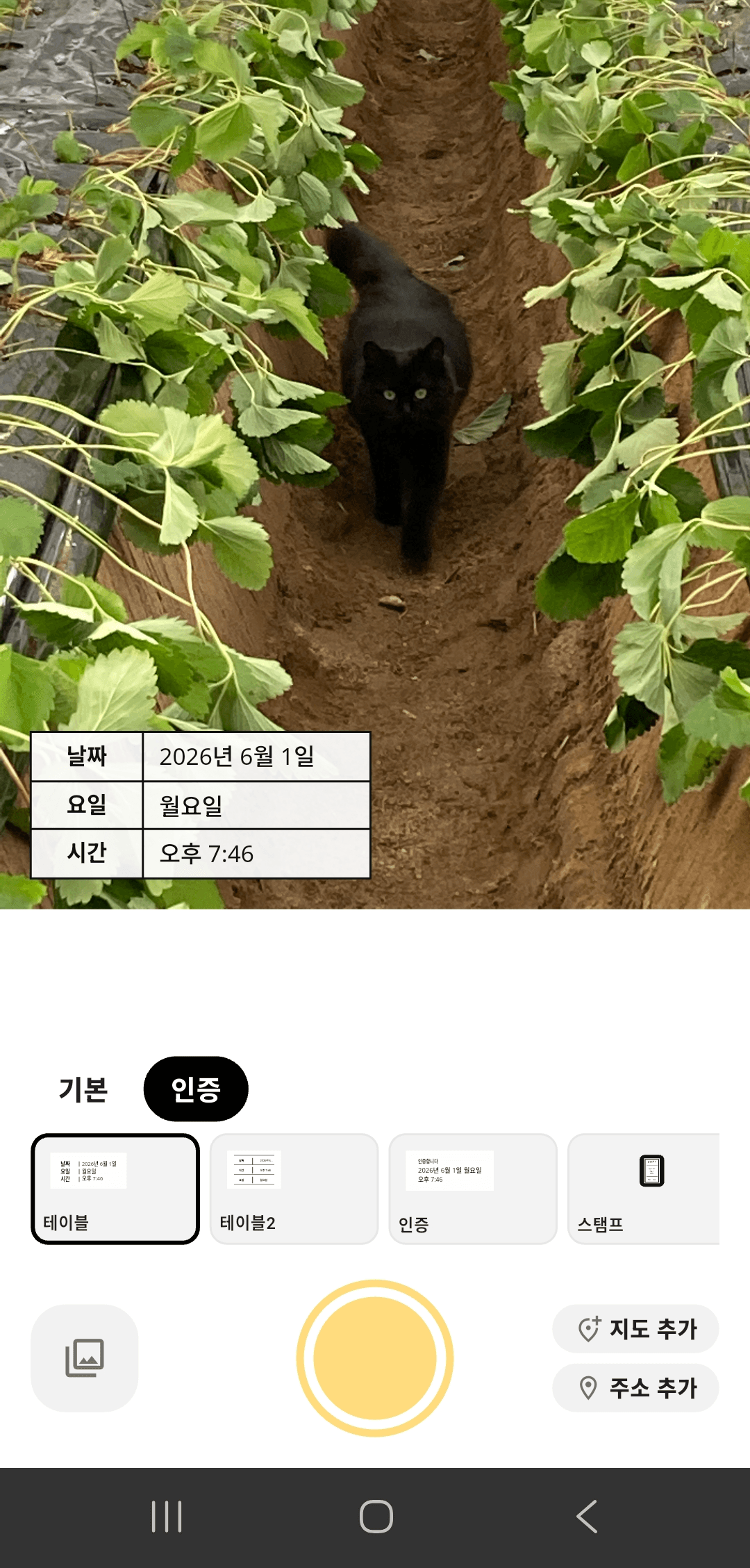
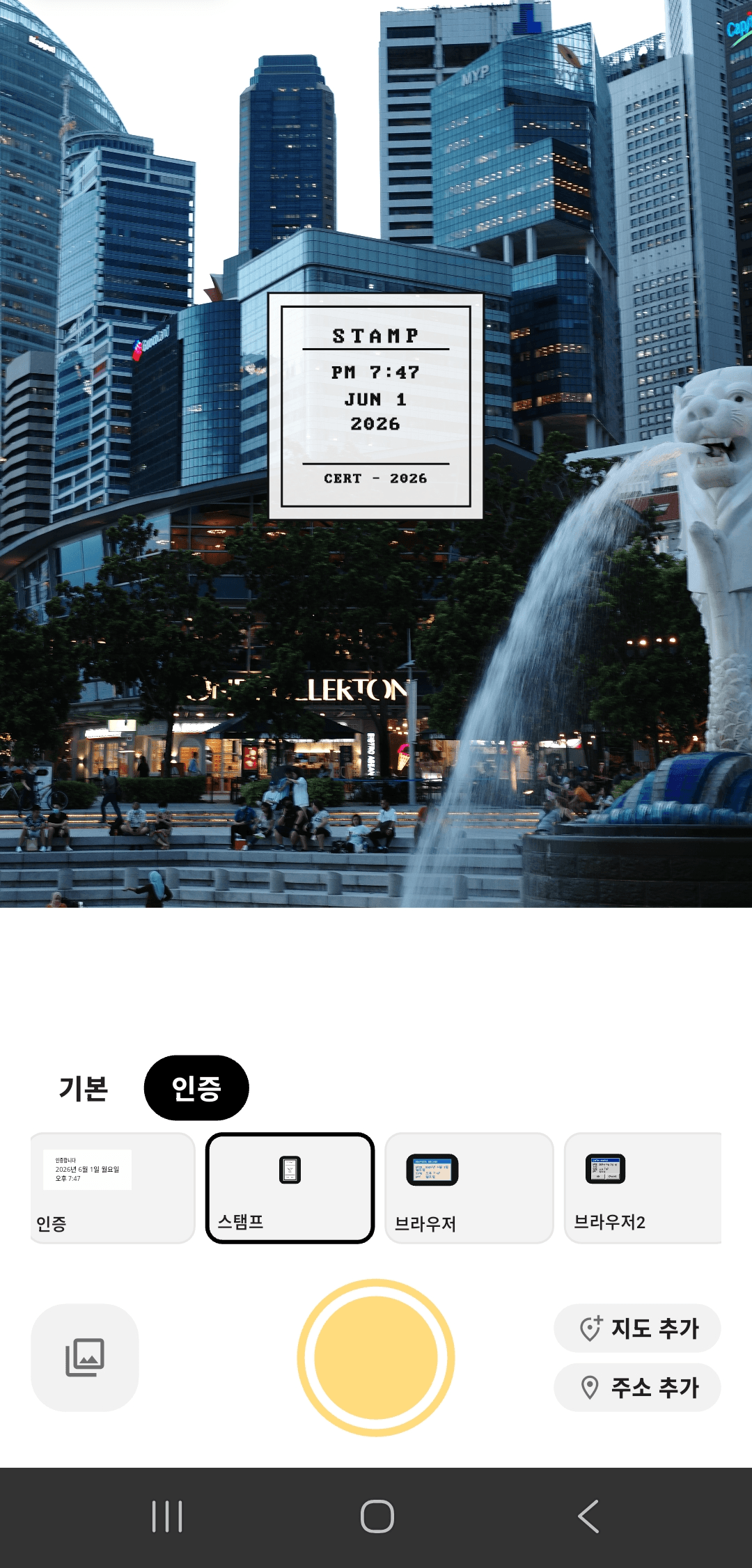
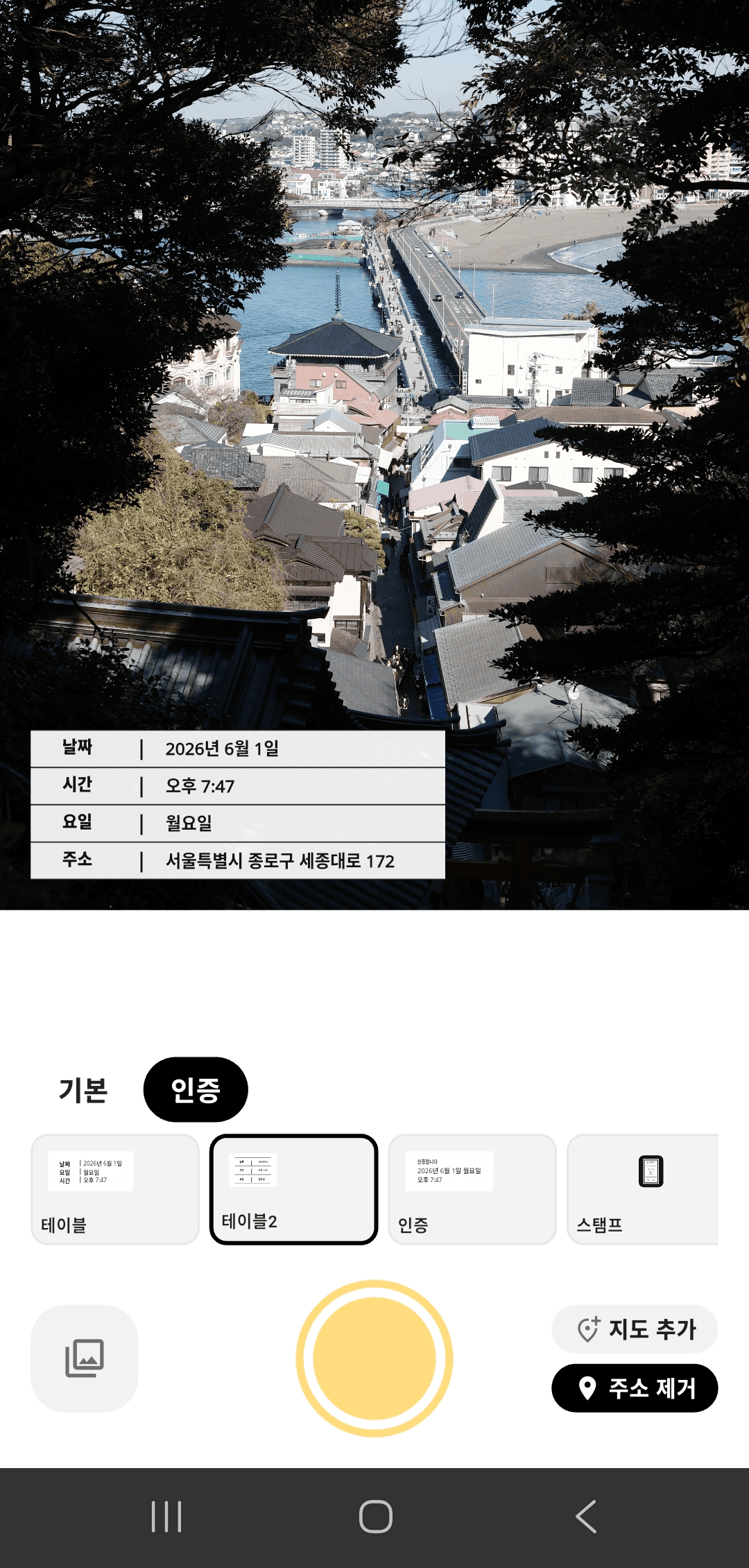
Date, time, and address in one shot.
The details you need are visible on the photo, so the record is easier to review later.
Make time clear
Show the shooting date and time where they can be read immediately.
Record the place too
Add address information when a visit record or field photo needs context.
Match the format
Use table, proof, or stamp templates depending on the purpose of the photo.
Built for moments that need a record.
Combine date, time, and address to preserve the context of a photo.
Site visits
Useful when you need proof of arrival at a client site, shop, or location.
Field work
Keep time and address on before-and-after, inspection, and facility photos.
Receipts
Organize expense and payment records as clear photos with timestamps.
Choose a template and shoot right away.
Table
Address
Stamp
Find the setup you need quickly.
Learn how to choose a timestamp app, show location, combine time and address, and start using DateCamera.
Timestamp app recommendation
What to check when you need date, time, and location on photos.
How to show timestamp location
Settings to check when the address does not appear on a photo.
Timestamp time and location
How to display time and location together and switch templates.
How to use the timestamp app
Install, allow permissions, choose a template, shoot, and save.
Keep photo records cleaner.
If you take photos that need date, time, or address, DateCamera is ready to use.